
-
Mohit - 08 May, 2026
Google Workspace and Microsoft 365 Coexistence: The Complete Technical Guide
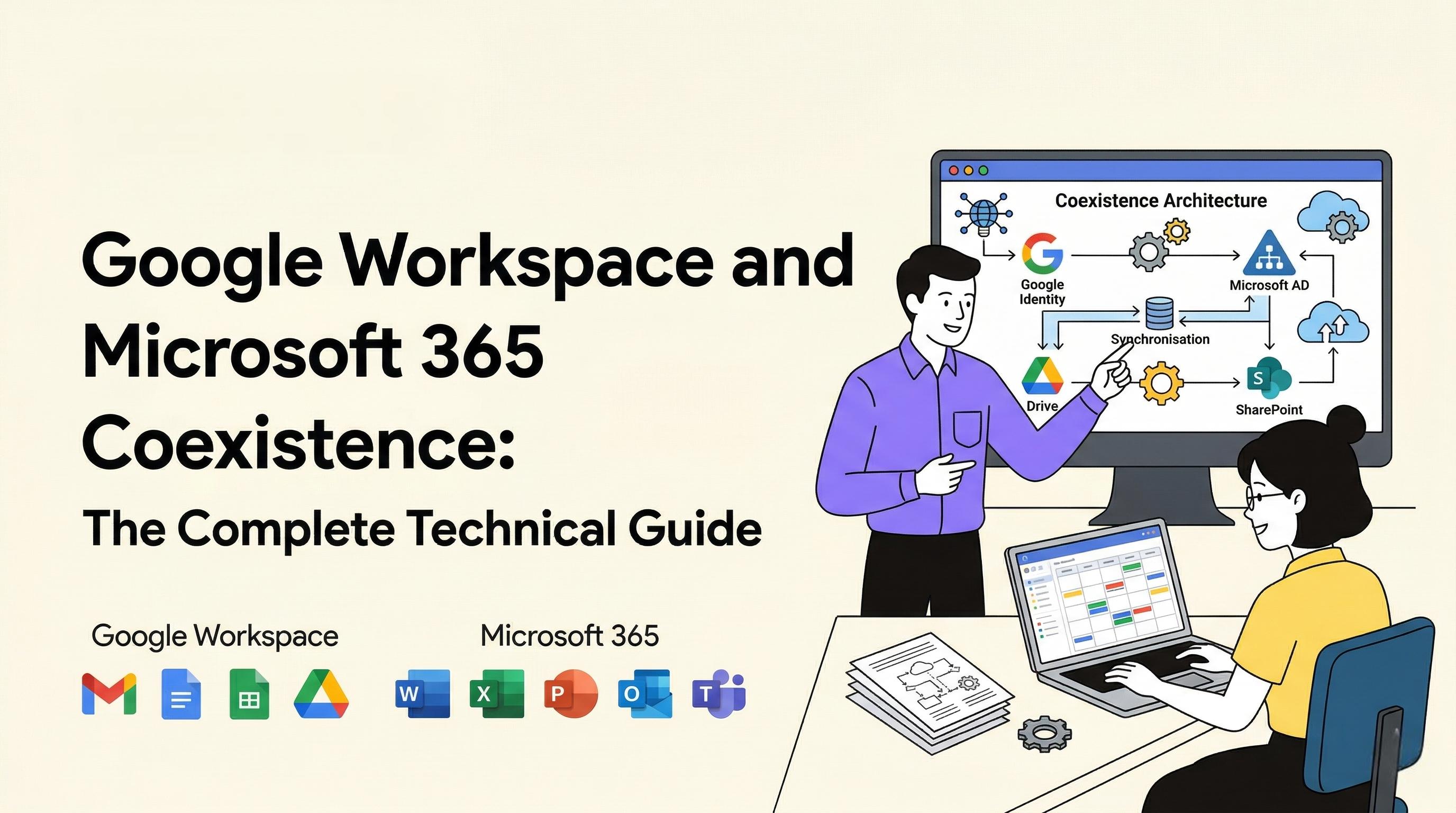
This guide is for IT administrators who need to make Google Workspace and Microsoft 365 actually live together inside the same organization — not as a hack or a temporary workaround, but as a properly engineered, long-term setup. We'll cover the full picture: how mail flows, how identities stay in sync, how calendar availability crosses the platform boundary, how real-time chat can bridge the two ecosystems, how authentication should be structured, and the compliance gaps nobody talks about until they get bitten by one.The Three Coexistence Models You Need to Understand Before any configuration work, it's worth being precise about what model you're building — because each one implies a different architecture for mail, identity, and collaboration. Split Delivery Coexistence This is the most common scenario. Some users live on Google Workspace; others are on Microsoft 365. Both groups share the same corporate domain — say, company.com — and need to email each other, see each other's calendar availability, and find each other in a shared address book. The engineering challenges are real:A single MX record set can't natively route mail to two platforms simultaneously — you need a deliberate routing strategy. Users on both platforms need to find each other in a unified global address list. Calendar free/busy data has to be visible across the platform boundary. Distribution lists and mailing groups have to work regardless of which platform a recipient is on.Dual Delivery Coexistence Dual delivery is a mode where the same incoming message is delivered to two inboxes simultaneously — the recipient's Gmail inbox and their mailbox on another system. This isn't a long-term model but has a clear practical application during migrations: a user being migrated from Exchange to Gmail can receive messages in both places during the transition window, eliminating the need to define a hard cutover date. The key distinction from split coexistence: in split coexistence, each user gets mail to one system based on who they are. In dual delivery, one user gets mail to two systems at the same time. Google documents both configurations clearly in the Admin console under Apps → Google Workspace → Gmail → Routing.Dual Delivery Purpose Coexistence (Two Platforms, Different Roles) In this model, every user has accounts on both platforms but each platform serves a specific purpose. A common example: Exchange Online handles primary email while Google Workspace handles collaboration — Meet, Drive, Docs, Chat. The exact capabilities available depend on which Google Workspace subscription is in use, but the pattern holds regardless. For the rest of this guide, we'll focus primarily on split coexistence, since it's the most architecturally complex case and requires the most deliberate configuration.Full Architecture Overview Before touching any configuration, it helps to have a clear mental model of the complete system. Here's what a mature split coexistence environment looks like:Every identity originates in a single source of truth — typically on-premises Active Directory (or in cloud-native environments, Google Cloud Identity or Entra ID). From that source, identities are synchronized in two directions simultaneously: to Google Workspace via GCDS or Directory Sync, and to Microsoft 365 via Azure AD Connect. This dual-sync ensures that when a Gmail user types a colleague's name, autocomplete works regardless of which platform that colleague is on.Section 1: Directory Synchronization in Depth GCDS vs. Directory Sync — Choosing the Right Tool Google currently offers two tools for syncing your on-premises directory to Google Workspace. Google Cloud Directory Sync (GCDS) is the established option — a Windows/Linux server application you install, connect to your LDAP or Active Directory, and schedule to run regularly. It's mature, configurable, and tested at large scale. The newer Directory Sync (available in the Admin console under Apps > Google Workspace > Directory Sync) is a cloud-based alternative with no local server requirement. It uses the Data Connectors API and connects to your LDAP directory over a secure tunnel. Key distinctions as of February 2026:Capability GCDS Directory SyncRequires on-prem server Yes NoExternal directory support All LDAP (AD, OpenLDAP, etc.) AD and Azure AD onlySync frequency Admin-configurable Full sync 1hr after previous; not adjustableData synced Users, groups, calendar resources, contacts, passwords Non-admin users and groups onlyMultiple directory sources No AD: Yes / Azure AD: One directory onlyStatus GA Public betaDirectory Sync is worth evaluating for new deployments where setup simplicity matters. For environments that sync calendar resources, external contacts, or passwords — or that have complex LDAP filter rules — GCDS remains the right choice. GCDS Architecture and Data FlowWhat GCDS syncs and why it matters specifically in coexistence: User accounts carry display name, email, employee ID, department, manager, phone, and job title — everything needed for a complete Global Address List on both platforms. Security groups become Google Groups, powering access control, mailing lists, and Admin console policy targeting. Contacts — this is critical — allow M365 users to be synced as directory contacts into Google Workspace. Without this, Gmail's autocomplete is blind to everyone on Exchange. M365 users don't need full Google Workspace licenses; provision them as Cloud Identity Free users or contacts so they appear in the directory at no paid license cost. Calendar resources — meeting rooms, projectors, equipment — can be synced so they appear in Google Calendar. Note that Directory Sync (the newer cloud tool) doesn't sync resources; GCDS is required. GCDS configuration best practices:Run on a dedicated server — sync failures cause directory drift, which causes support tickets. Schedule every 15–30 minutes for orgs under 10,000 users; 60 minutes for larger ones. Use a service account with read-only access to Active Directory. Never a domain admin credential. Enable "Suspend users not found in LDAP" rather than delete — safety net for accidental scope changes. Always run --apply-new-config --simulation before applying any configuration change to production. Use GCDS reports and notifications to get email alerts on sync failures.Password Sync — a Separate Tool GCDS does not handle password synchronization. That's handled by Google Workspace Password Sync (GWPS), a DLL installed on your domain controllers. When an AD user changes their password, GWPS intercepts the change and syncs it to Google Cloud Identity in real time. Most enterprise deployments skip this in favor of SSO — if users authenticate through a SAML IdP, their Google password never matters. But for organizations needing direct Google sign-in without SSO (admin scenarios, service accounts, API access), GWPS keeps credentials aligned without manual intervention. The tool has its own deployment guide covering installation, service account setup, excluded users, and log-based troubleshooting.Section 2: Mail Flow — The Foundation Everything Else Rests On Mail routing is the piece that, when it breaks, users notice immediately. Inbound Mail Routing (Split Delivery)The standard approach: point all MX records for company.com to Google's mail servers. Google acts as the inbound gateway for the entire domain and handles routing decisions internally. To route M365 user mail from Google to Exchange Online, configure a routing rule: Admin console → Apps → Google Workspace → Gmail → Routing Create a rule matching M365 user addresses (by OU, group, or address pattern) that changes the route to your M365 inbound endpoint — typically company-com.mail.protection.outlook.com. Exchange Online must have an inbound connector that trusts mail from Google's IP ranges. The Catch-All Mailbox — Don't Overlook This Email sent to addresses that don't exist on either platform — mistyped addresses, legacy aliases, test accounts from the old environment — will bounce unless you configure a catch-all. Google supports a catch-all via the routing rules: messages to unrecognized addresses within your domain get redirected to a designated mailbox rather than bouncing. This matters especially during migrations, when some addresses may not yet be provisioned in the destination platform. A catch-all to a monitored inbox is configured at: Apps → Google Workspace → Gmail → Routing → Default routing Set "Account types to affect" to "Unrecognized/Catch-all" and route those messages accordingly. It's a small configuration that prevents a disproportionate number of support tickets. Outbound Mail RoutingEach platform handles its own outbound mail independently. Both need SPF, DKIM, and DMARC — covered in Section 3. The Internal Mail Problem — Where Deployments Stumble When an M365 user emails a Gmail user, the message is internal by domain. Exchange Online doesn't natively know about Gmail users, so it may attempt local delivery (to a nonexistent Exchange mailbox) instead of routing out to Google. Fix: an outbound connector in Exchange Online:Identify Gmail users by mail-enabled security group or address range. Create an Exchange Online outbound connector matching those addresses. Route via Google's SMTP relay (smtp-relay.gmail.com:587, authenticated).The cleaner alternative for large deployments: configure M365 to route all @company.com traffic to Google as a smart host, and let Google make the final delivery decision. This concentrates all routing logic in one place and makes troubleshooting dramatically simpler. Inbound Mail Gateway If your organization uses a third-party email security gateway (Proofpoint, Mimecast, Barracuda) for inbound filtering, configure it as the inbound mail gateway in Google Admin: Apps → Google Workspace → Gmail → Spam, Phishing and Malware → Inbound gateway This tells Gmail to trust mail arriving from your gateway's IP addresses rather than re-running spam/AV checks on already-filtered messages. It also prevents Google's spam detection from incorrectly flagging legitimate messages that have been pre-processed by the gateway. SMTP Relay for Non-Mail Systems Applications, printers, scanners, and line-of-business systems that need to send email on behalf of your domain can use Google's SMTP relay service (smtp-relay.gmail.com:587). The relay accepts authenticated connections and routes messages as your domain, maintaining SPF alignment. Authenticate using IP allowlisting, OAuth, or TLS certificates. Any device using the relay must be covered in your SPF record — otherwise DMARC will flag those messages. CRM and Third-Party Email Integration Gmail supports routing rules for integrating with third-party CRM platforms like Salesforce. When a Gmail user receives a message that should be logged against a customer record, a routing rule can BCC or forward a copy to the CRM's inbound email address — transparently, without requiring user action. Configure this at Apps → Google Workspace → Gmail → Routing, using a content compliance or routing rule that adds a recipient to applicable messages. It's a one-way copy for logging; the original message lands in Gmail normally.Section 3: SPF, DKIM, and DMARC — Don't Skip This With two mail systems sending on behalf of the same domain, email authentication is non-negotiable. SPF (Sender Policy Framework) v=spf1 include:_spf.google.com include:spf.protection.outlook.com ~allThis authorizes both Google's and Microsoft's infrastructure as legitimate senders. Also include your SMTP relay, inbound gateway, and any third-party senders (marketing tools, CRM systems, HR platforms) that send from your domain. Regional domains should have separate SPF records that only authorize the specific platform used in that region. DKIM (DomainKeys Identified Mail) Both platforms need their own DKIM keys published in DNS. For Gmail: Admin console → Apps → Google Workspace → Gmail → Authenticate email — generate a 2048-bit key, publish the TXT record (selector: google._domainkey.company.com), then enable signing. For Exchange Online: Microsoft 365 Defender → Email & Collaboration → Policies & Rules → DKIM — enable for your domain; Microsoft generates keys and publishes CNAME records automatically. Two DKIM TXT records in DNS (one per platform) is correct and expected. DMARC Rollout — Phase It Roll out DMARC in three deliberate phases. Phase 1 — Monitor (minimum 30 days): Start with v=DMARC1; p=none; rua=mailto:dmarc@company.com; fo=1. This policy takes no action on failing messages but generates aggregate reports you can read. Use this phase to identify every sending source — read the reports weekly, find all unknown senders, and fix them before moving on. Phase 2 — Quarantine: Once you're confident in your sender coverage, move to v=DMARC1; p=quarantine; pct=100; rua=mailto:dmarc@company.com. Failing messages are directed to spam/junk rather than rejected outright. Watch closely for false positives and resolve any remaining gaps. Phase 3 — Reject (final): When quarantine produces no false positives, advance to v=DMARC1; p=reject; pct=100; rua=mailto:dmarc@company.com. Unauthenticated mail is now refused at the receiving server. Never skip the monitoring phase. In organizations running two mail platforms, you will discover sending sources you didn't know existed — legacy applications, third-party integrations, regional mail systems. Finding those during p=none costs nothing; finding them after p=reject means dropped legitimate mail.Section 4: Calendar Interop — Making Free/Busy Work Calendar free/busy visibility is the feature that most visibly affects day-to-day experience in a coexistence environment. When a Google Calendar user can't see whether their Outlook colleague is available, scheduling collapses into back-and-forth email threads. Users notice within hours of go-live. Google Workspace's built-in answer is Calendar Interop, which bridges Google Calendar and Exchange Online. ⚠️ EWS Is Retired If your Calendar Interop setup was configured before mid-2025, it's almost certainly using Exchange Web Services (EWS). Microsoft has confirmed EWS will no longer be supported in Exchange Online after October 1, 2026. Google introduced Microsoft Graph API support for Calendar Interop in May 2025. Calendar Interop Architecture (Graph API)To update or configure: Admin console → Apps → Google Workspace → Calendar → Calendar Interop Management → Exchange availability in Calendar → Allow Google Calendar to display Exchange user availability Select Graph API from the endpoint dropdown, enter your Microsoft domain, and configure role accounts for user availability and resource booking. The updated UI also lets you define per-domain endpoint mappings, making it easy to see and maintain configuration across multiple Microsoft domains. The Graph API provides a security improvement over EWS: access is scoped specifically to calendar data rather than broader mailbox access. Room and Resource Booking As of April 7, 2026, Google launched an open beta allowing Outlook users to book Google Workspace resources (rooms, projectors, equipment) directly from their calendar — no Google account required. Admins enable this per-resource in the Admin console, specifying which non-Google users or domains can book. A booking is made by adding the resource's email address as a guest in a calendar event. When Calendar Interop is also active, Outlook users can search for Workspace resources by name and check availability before inviting. User Alias Domain Considerations If your Google Workspace tenant and Microsoft 365 tenant use different primary domains (e.g., GWS users at company.com and Exchange users at corp.company.com), you'll need to configure how Calendar Interop maps identities across the boundary. Google's documentation covers whether to use a user alias domain and the configuration steps for making the identity mapping work correctly in this scenario. Filtering Calendar Email Notifications Cross-platform calendar invites generate a lot of email noise — accept/decline notifications, update notifications, and cancellation emails that flow across the interop boundary. Google allows admins to configure rules to filter these Calendar-generated notifications: Admin console → Apps → Google Workspace → Calendar → Calendar Interop Management → Filter Google Calendar email notifications This is worth configuring before go-live to avoid flooding users with automated emails that are artifacts of the interop system rather than genuine human correspondence. Calendar Interop Limitations — Set Expectations Before Go-LiveFeature Available? NotesFree/busy visibility ✅ Yes Works bidirectionallyBooking Exchange/M365 rooms from GWS ✅ Yes Production-supportedBooking GWS resources from Outlook ⚠️ Open Beta Live April 7, 2026RSVP status visible across platforms ⚠️ Partial Same-platform users onlyCalendar delegation across platforms ❌ No Requires same platformWorking hours sync ❌ No Not transmitted via InteropOut-of-office text visible across platforms ⚠️ Partial Shows as busy, not OOO textThe calendar delegation limitation has real operational impact. An executive on Google Workspace whose EA is on M365 can't use native cross-platform delegation. Standard workaround: provision the EA with a secondary Google Workspace account (Gmail disabled) for calendar access only. Their email continues routing to M365; the Google account exists solely to enable delegation.Section 5: Google Chat ↔ Microsoft Teams Interoperability This section covers a topic that directly affects day-to-day productivity in mixed environments and was absent from the previous version of this guide. Email and calendar interop cover structured communication. But increasingly, real-time messaging is where actual work happens. In a coexistence environment where some employees use Google Chat and others use Microsoft Teams, the absence of a messaging bridge means constant app switching, split conversations, and files landing in different systems depending on which platform the sender used. The Native Gap Google Chat and Microsoft Teams do not natively federate. A Chat user cannot send a message to a Teams user and have it appear in Teams, and vice versa. Google × NextPlane: The Official Integration In April 2025, Google and NextPlane announced a strategic partnership to enable cross-platform messaging between Google Chat and Microsoft Teams. The technology powering it is NextPlane OpenHub, a cloud-native, standards-compliant interoperability layer. The integration became notable because it's not just a third-party bolt-on — it's managed directly from the Workspace admin console, honors existing identity and audit policies in both platforms, and doesn't require a separate management portal. How OpenHub Works ArchitecturallyKey architectural properties worth noting for IT governance:OpenHub does not store messages or files in a central repository. It does not require super admin credentials or tenant-wide elevated permissions. Accounts created as part of the interop are standard guest accounts governed by each organization's own identity policies — not accounts controlled by NextPlane's infrastructure. No separate NextPlane management portal is needed; configuration lives in the Workspace admin console. Data sovereignty requirements are addressed through regional deployment options.What the Integration Covers Beyond basic text messaging, OpenHub between Chat and Teams supports:Real-time messaging in both 1:1 and group conversations File sharing and access across platforms Message reactions, rich text formatting, emoji, and edited messages Voice and video call escalation (as of November 2025 — a Chat conversation can be elevated to a cross-platform voice or video call) Channel and Space synchronization without requiring per-channel admin intervention Admin-level scope control: interoperability can be enabled by group or domain, so you turn it on only where needed (specific partner-facing teams, for example)Important: A Separate NextPlane License Is Required This is worth stating clearly. NextPlane's interoperability is a separate commercial product from your Google Workspace subscription. You need to procure a NextPlane license to activate OpenHub. The feature is administered from your existing admin console, but the commercial relationship with NextPlane is separate from your Google contract. For organizations where significant cross-platform collaboration happens daily — especially post-M&A situations, or departments with strong platform preferences — this is worth factoring into the project budget alongside the infrastructure costs.Section 6: Single Sign-On and Identity Management Running two productivity platforms doesn't mean users should need two separate login experiences. Federation with Microsoft Entra ID For organizations where Microsoft 365 is primary and Google Workspace is supplemental, federating Google Workspace with Microsoft Entra ID (formerly Azure AD) is a natural fit. You configure Google as a service provider and Entra ID as the SAML identity provider. Users sign in with their Microsoft credentials, and the SAML assertion is accepted by Google. The same pattern works in reverse: Google Cloud Identity as the authoritative IdP, with Microsoft 365 configured to trust it. Azure AD is set up in a federated domain trust where authentication redirects to Google for verification. Google's Cloud Architecture documentation covers both patterns in detail — including assessing your existing user accounts before enabling federation (which matters for preventing authentication breakage) and the B2B user provisioning patterns for organizations that need Entra ID SSO for Google Workspace users. SSO Architecture Options2FA Enforcement Enforce 2-Factor Authentication on both platforms regardless of IdP choice. In Google Admin console: Admin console → Security → 2-Step Verification → Enforcement Set enrollment enforcement to "On" and the grace period to 1–7 days for new users. In Microsoft 365, configure enforcement via Entra ID Conditional Access policies.Section 7: Data Loss Prevention (DLP) Parity When users on two platforms exchange mail and share documents, DLP coverage has to span both surfaces. A policy blocking credit card numbers in Gmail does not automatically apply to Outlook. Inconsistent DLP creates compliance gaps that security teams rarely discover until a regulator asks. DLP in Google Workspace Admin console → Rules → DLP rules Google Workspace DLP scans Gmail (body and attachments), Drive files, and Chat messages. Rules match on sensitive data types, specific file types (including PDFs and Office documents), content in images via OCR, and sharing context (external recipients, public links). Actions include warn, block, quarantine, redact, and audit log. DLP in Microsoft 365 Microsoft Purview provides DLP for Exchange Online, SharePoint, OneDrive, and Teams. The sensitive information type library is extensive; custom trainable classifiers are supported. Where policies use custom regex or proprietary data types, maintain a central document defining the intended coverage so both implementations stay in sync as policies evolve. For true cross-platform DLP from a single policy set, a third-party CASB (Netskope, Zscaler, or Microsoft Defender for Cloud Apps) can sit in-line across both environments.Section 8: Storage and Document Collaboration Google Drive as the Cross-Platform Document Hub When a Google Drive user shares a file with an M365 colleague, the M365 user gets a notification link, clicks it, and opens the file in a browser. No Google account required for view or comment access. For editing, the M365 user can authenticate with a Cloud Identity Free account (provisioned via GCDS) and edit directly in Google Docs, Sheets, or Slides — with the file remaining in Drive. Drive's built-in Office file compatibility handles a practical friction point: when an M365 user attaches a .docx or .xlsx in email, a Gmail user can open it in the Google editor, make edits, and save — and the file stays .docx. No silent format conversion unless the user explicitly requests it. OneDrive and SharePoint from the GWS Side An M365 user shares a OneDrive or SharePoint link, and the Gmail user authenticates as a Microsoft guest. Full edit access may require Microsoft guest account provisioning. For cross-platform projects where frictionless access matters, Drive tends to win: GWS users have native access, M365 users access via Cloud Identity Free. OneDrive guest access creates more friction and more dependency on Microsoft's guest account management.Section 9: Online Meetings and Cross-Platform Video The Fundamental Rule Meeting technology follows the organizer's platform: GWS user organizes → Meet link generated; M365 user organizes → Teams link generated. Both link types are joinable from any browser. For a GWS-primary organization that regularly hosts M365 users, put the Meet URL in the invite body text — not just embedded in calendar metadata. Outlook users spot it, click it, and join from their browser without needing any Google account. Voice and Video Across Platforms via NextPlane OpenHub As of November 2025, NextPlane OpenHub extended Chat ↔ Teams interoperability to include voice and video call escalation. A text conversation between a Chat user and a Teams user can be elevated to a call — each user staying in their native client. This closes the gap between text-based interop (available first) and the richer communication modalities organizations actually depend on. Room Hardware Integration via Pexip Legacy video conferencing hardware (Cisco, Polycom, Crestron) speaks SIP/H.323, not Meet or Teams links. Pexip bridges this: with Pexip configured, a Google Calendar invite automatically includes the Meet URL, a SIP URI for the room system, and a phone dial-in with PIN. Pexip can be deployed in GCP, Azure, AWS, or on-premises.Section 10: Device Management in a Mixed Environment Device management in a coexistence environment splits across three categories. GWS users are managed through Google Admin Console, which handles Chromebooks, Windows and Mac machines, and mobile MDM. M365 users are managed through Microsoft Intune, covering Windows, iOS, and Android devices. BYOD devices are handled separately via the Endpoint Verification Chrome extension combined with Context-Aware Access policies — no full MDM enrollment required. Chromebooks must be managed by Google Admin console — Intune has no ChromeOS management capability. Windows devices for M365 users are typically managed via Intune. Mobile devices can be managed by either platform's MDM depending on which is the user's primary. BYOD with Context-Aware Access Google's Context-Aware Access (built on BeyondCorp zero-trust principles) provides fine-grained access control on personal devices without requiring full MDM enrollment. The Endpoint Verification Chrome extension registers the device and reports its security posture: OS version, encryption status, screen lock, and corp-managed status. When a personal device attempts access, Endpoint Verification evaluates three conditions: whether the OS is current, whether the device is encrypted, and whether a screen lock is set. If all three checks pass, the user receives full access to Drive and Gmail. If any check fails, access is restricted or blocked entirely and the user is redirected to IT remediation. This keeps personal devices out of sensitive resources without the overhead of full MDM enrollment.Section 11: Enterprise Search Across Both Platforms Google Cloud Search can index content from Google Workspace and Microsoft 365 simultaneously, providing a single search experience regardless of where files live. Connectors exist for Gmail, Drive, Exchange Online, OneDrive, SharePoint, Teams, on-premises file servers, Salesforce, and custom sources via the Cloud Search API. Search results appear from all indexed sources at once, with access permissions enforced. Users see only what they're authorized to see across both platforms. This is most valuable when users genuinely don't remember which platform a document ended up in. One query, results from both — without requiring users to toggle between search interfaces.Section 12: Groups, Mailing Lists, and Organizational Units Single Source of Truth for Group Membership All groups and mailing lists must be maintained in one place — almost always on-premises Active Directory. When groups exist only in Google Workspace and not M365 (or the reverse), you get split address books. A Gmail user can email sales-team@company.com and it works; an Outlook user tries the same address and receives an NDR. GCDS syncs AD groups to Google as Google Groups. Azure AD Connect syncs the same AD groups to Exchange Online as mail-enabled security groups. Both platforms end up with matching coverage from the same source. For user-created groups, configure Google Groups for Business with a naming suffix policy so self-service groups are distinguishable from system-managed ones. This prevents naming collisions and keeps group management traceable over time. Organizational Units vs. Groups for Policy Targeting Admin console policies can be applied at two levels: Organizational Unit (OU) hierarchy — mirroring your AD OU structure — and Google Groups, which allow policy targeting to specific user subsets regardless of OU membership. Keep the OU structure shallow and use Groups for policy granularity. A flat OU with group-based enforcement is significantly easier to maintain than a deep hierarchy trying to replicate every departmental nuance.Section 13: Compliance, Archiving, and eDiscovery In a split coexistence environment, compliance requirements apply to both platforms independently. Google Workspace Archiving Google Vault is included in certain Google Workspace subscriptions and covers Gmail, Drive, Chat, Groups, and Meet recordings. It supports retention rules, legal holds, and eDiscovery exports. Third-party tools like Mimecast, Veritas Enterprise Vault, and Proofpoint integrate via API for organizations that need a unified archiving layer across both platforms. Microsoft 365 Archiving Microsoft Purview Compliance handles in-place archiving, retention policies, litigation hold, and eDiscovery for Exchange Online, SharePoint, OneDrive, and Teams. Auto-expanding archiving means Exchange Online archive mailboxes grow without hitting size limits. Cross-Platform eDiscovery — The Hard Part The most challenging scenario: a legal hold requires preserving all communications for an employee who primarily uses Gmail but was also CC'd on Teams messages and has files in both Drive and SharePoint. No native tool handles this in a single workflow. Standard approach: run separate holds and exports from each platform (Google Vault and Microsoft Purview), then combine them. Third-party eDiscovery platforms — Relativity, Logikcull, ZL Technologies — can aggregate exports from both into a unified review environment. For long-term retention requirements (10-year contracts, 20-year regulated documentation), configure retention policies identically in both systems and verify them through an annual audit.Common Mistakes and How to Avoid Them 1. Splitting MX records between platforms. Don't. All MX should point to Google; Google routes to M365. Split MX causes unpredictable delivery depending on which server an external sender reaches. 2. Forgetting to sync M365 users as contacts in Google Directory. Without this, Gmail autocomplete is blind to everyone on Exchange. Sync M365 users as Cloud Identity Free accounts or directory contacts via GCDS. 3. Partial SPF records. An SPF record that includes only one platform causes DMARC failures for messages sent from the other. Audit SPF and verify all legitimate senders are covered — both platforms, your SMTP relay, your inbound gateway, third-party senders. 4. Jumping to DMARC p=reject without a monitoring period. Do at least 30 days of p=none first. You will find sending sources you didn't know about. Skipping this drops legitimate mail. 5. Not migrating Calendar Interop from EWS to Graph API. EWS is being retired October 1, 2026. Update now. 6. Assuming calendar delegation works cross-platform. It doesn't. Calendar delegation, Gmail delegation, and Contacts delegation all require both users on the same platform. 7. Neglecting DLP parity. Policies in one platform don't extend to the other. Audit DLP rules side by side. 8. No catch-all mailbox during transitions. External senders to any undefined address get an NDR. Set up a catch-all to a monitored inbox. 9. Not evaluating Chat interoperability early. If Teams and Google Chat are both in active use, assuming users will just context-switch is optimistic. Evaluate NextPlane OpenHub during the planning phase — retrofitting it later is harder than building it in.Deployment Checklist Phase 1 — Identity and Directory (Weeks 1–2) Deploy GCDS (or evaluate Directory Sync); configure sync from AD to Google Cloud Identity Configure Azure AD Connect for AD → Entra ID sync Provision M365 users as Cloud Identity Free contacts in Google Directory Audit existing user accounts before enabling federation Configure SSO (choose architecture from Section 6) Enforce 2FA on both platformsPhase 2 — Mail Flow (Weeks 2–3) Point all domain MX records to Google Configure Google routing rule to forward M365 user mail to Exchange Online Protection Configure Exchange Online inbound connector to accept mail from Google Configure Exchange Online outbound connector to route Gmail user mail via Google SMTP relay Set up catch-all mailbox for unrecognized recipient addresses Configure inbound mail gateway if using third-party email security Configure SMTP relay for non-mail systems (printers, apps, scanners) Configure CRM/third-party email forwarding rules if needed Publish SPF records covering both platforms and all third-party senders Configure DKIM signing in Gmail Admin console Configure DKIM in Microsoft 365 Defender Deploy DMARC at p=none; set up reporting mailbox Validate end-to-end mail flow with test accounts in both directionsPhase 3 — Calendar and Meetings (Weeks 3–4) Configure Calendar Interop using Microsoft Graph API Create Graph API service account in Azure AD with calendar scope Test free/busy visibility GWS → M365 and M365 → GWS Assess whether user alias domain configuration is needed Configure Calendar email notification filtering to reduce interop noise Decide on meeting room resource strategy Evaluate Outlook-to-GWS resource booking open beta if applicable Deploy Google Meet add-in for Outlook if needed Evaluate Pexip for room hardware integrationPhase 4 — Chat Interoperability (Weeks 3–5, if applicable) Evaluate whether Google Chat ↔ Teams messaging bridge is needed Procure NextPlane OpenHub license if proceeding Configure interoperability settings in Google Workspace admin console by group/domain Define scope: which teams or domains should have cross-platform messaging Test 1:1 messaging, group conversations, file sharing, and reactions Evaluate voice/video escalation requirementsPhase 5 — Security and Compliance (Weeks 4–6) Configure DLP rules in Google Workspace (Gmail, Drive, Chat) Configure equivalent DLP rules in Microsoft Purview Document the cross-platform DLP coverage matrix Configure retention policies in Google Vault and Microsoft Purview Enable Google Endpoint Management for mobile devices Configure Context-Aware Access policies for BYOD Deploy Endpoint Verification extension for BYODPhase 6 — User Readiness (Weeks 5–7) Publish internal documentation: which platform am I on, how do I email/meet/share/chat? Train helpdesk on common cross-platform issues Communicate Calendar Interop limitations to executive assistants (delegation caveat) Communicate Chat interoperability scope to affected users Announce DMARC reporting and schedule a 30-day reviewPhase 7 — Ongoing Operations Monitor GCDS sync logs daily; alert on sync failures Review DMARC aggregate reports monthly Audit DLP hit rates quarterly and tune rules Review Calendar Interop health in Admin console monthly Maintain AD as single source of truth for group membership Verify Calendar Interop is using Graph API (EWS retires October 1, 2026) Review NextPlane OpenHub usage reporting if Chat interop is deployedFrequently Asked Questions Can users on both platforms share the same @company.com domain? Yes. Inbound MX points to Google; Google routes based on which platform the recipient is on. Do M365 users need a Google account? Not a paid one. Cloud Identity Free provides a Google identity for Drive sharing and Gmail autocomplete without incurring Workspace licensing cost. What's the difference between split delivery and dual delivery? Split delivery routes each message to one platform based on who the recipient is. Dual delivery sends the same message to the same recipient on two platforms simultaneously — used during migrations to avoid a hard cutover. Can Google Chat and Microsoft Teams users message each other directly? Not natively — but Google's partnership with NextPlane OpenHub makes it possible. It requires a separate NextPlane license, is configured from the Workspace admin console, preserves the native experience for users on both platforms, and now supports voice and video escalation as well. Can a Gmail user and an Outlook user co-edit a document in real time? Yes, if the document is in Google Drive. Both can open it in a browser and co-edit in real time. For OneDrive/SharePoint documents, the GWS user needs appropriate Microsoft guest access. What happens to aliases in a coexistence setup? Aliases work per-platform. If an M365 user has an alias on the same domain, configure routing rules in Google Admin console to direct that alias traffic correctly. Is coexistence a permanent state or a migration stage? Either. Some organizations maintain indefinite coexistence — especially post-acquisition entities with separate IT stacks. Others use it as a controlled migration stage with an eventual consolidation target. The infrastructure described here supports both.Wrapping Up Running Google Workspace and Microsoft 365 side by side is an engineering problem with well-understood solutions. The tools exist, the documentation is thorough, and the patterns here have been validated across many production deployments. What makes it genuinely complex is the number of interconnected components — mail routing, directory sync, authentication, Calendar Interop, Chat interoperability, DLP, device management, compliance — that all need to work correctly and stay coordinated as both platforms continue evolving. Organizations that get this right treat coexistence like any serious infrastructure project: plan thoroughly, deploy in layers, validate each piece before moving to the next, and document decisions for whoever comes after you. Two time-sensitive items before you close this tab: First, if you're running Calendar Interop and haven't migrated from Exchange Web Services to the Microsoft Graph API — that migration needs to happen before October 1, 2026. Put it on the calendar now. Second, if real-time messaging between Google Chat and Microsoft Teams is a daily friction point for your organization, NextPlane OpenHub moved from third-party workaround to Google-endorsed, admin-console-integrated feature in 2025. That changes the evaluation conversation significantly. If your organization is setting up or expanding Google Workspace as part of this coexistence deployment, you can get started with Google Workspace via our referral link. If you are still deciding which tier your organization needs, check out our complete Google Workspace Business Plans Comparison.This post reflects configurations and best practices current as of May 2026. Both Google Workspace and Microsoft 365 are actively developed platforms — always verify configuration steps against the current Admin console UI, as menu paths and feature names change between product updates.
-
Mohit - 09 Apr, 2026
Google Workspace Business Starter vs Standard vs Plus: Which Plan Actually Fits Your Team?
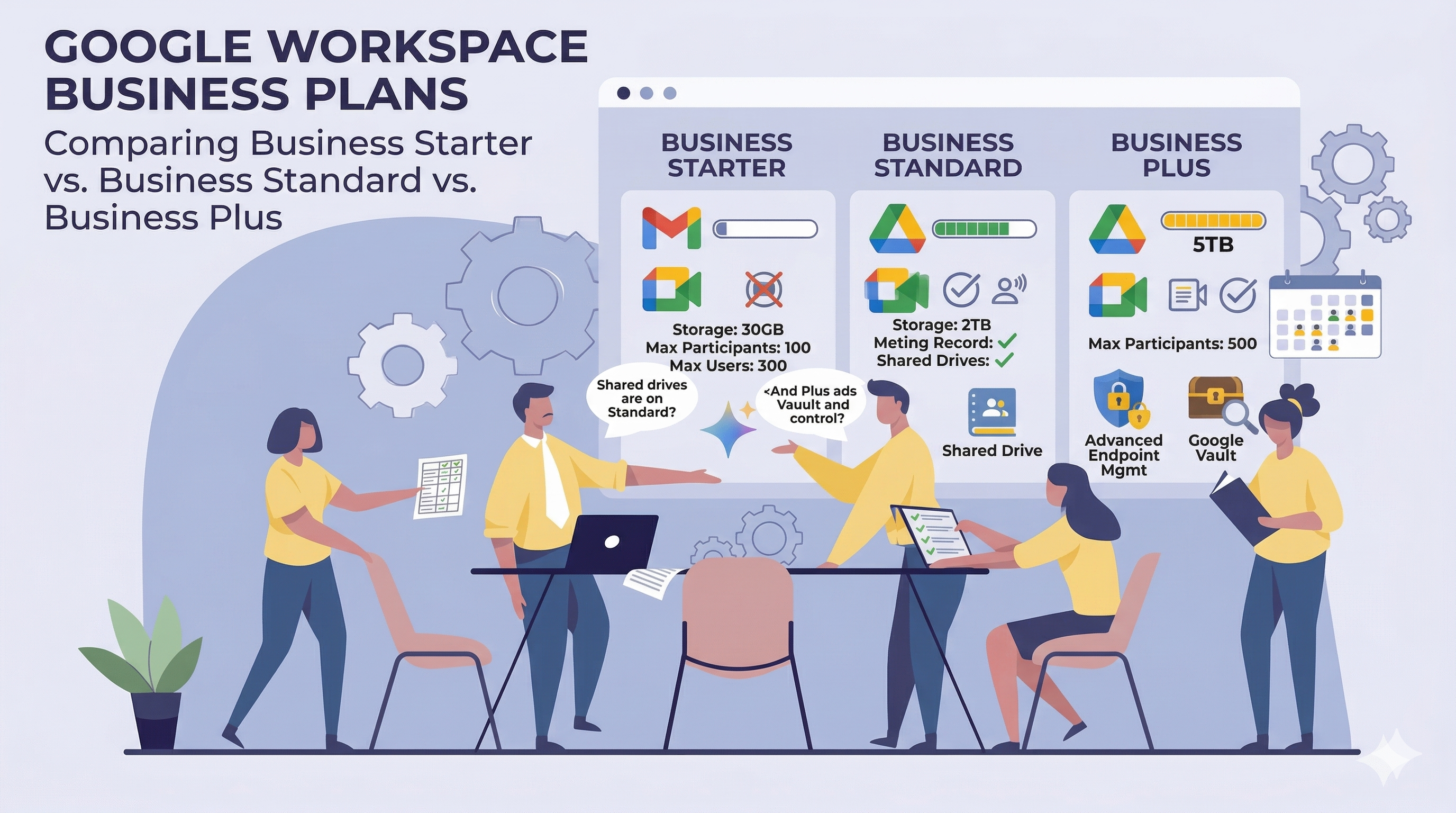
This guide goes deep on what actually separates Google Workspace Business Starter, Google Workspace Business Standard, and Google Workspace Business Plus Plans. Every section has a comparison table so you can see the differences at a glance, with context on why the distinctions matter in practice.The 30-second summary Before diving in, here's the short version:Business Starter covers the full core suite — Gmail, Calendar, Drive, Docs, Chat, Meet, and more — but storage is limited, meetings cap at 100 participants, and several collaboration, security, and AI features are locked out. Business Standard is where most growing teams land. Meaningful storage, meeting recordings and transcriptions, Gemini AI across the full productivity suite, Gmail Security Sandbox, and a raft of Drive collaboration features make this a significant step up. Business Plus is built for organizations that need compliance archiving via Google Vault, enterprise device management, larger meeting capacity, and tighter session and access controls. It's less about new collaboration features and more about administrative depth.All three plans support up to 300 users. Beyond that, you're in Enterprise territory.Plans at a glanceBusiness Starter Business Standard Business PlusMax users 300 300 300Pooled storage per user 30 GB 2 TB 5 TBMax Meet participants 100 150 500Google Vault included ✗ ✗ ✔Meeting recording ✗ ✔ ✔Meeting transcription ✗ ✔ ✔Noise cancellation ✗ ✔ ✔Attendance tracking ✗ ✗ ✔Advanced endpoint management ✗ ✗ ✔Gemini AI in Docs, Sheets, Slides, Drive ✗ ✔ ✔Gemini AI in Gmail ✔ ✔ ✔SAML app autoprovisioning 3 apps Unlimited UnlimitedSecure LDAP ✗ ✗ ✔Gmail Security Sandbox ✗ ✔ ✔Cloud Search (Google services) ✗ ✔ ✔99.9% uptime SLA ✔ ✔ ✔Ready to get your team on Google Workspace? Sign up for Google Workspace using our referral link and choose the Business plan that fits your organization.Service availability: what's included on every plan A lot of the Google Workspace core is available regardless of which Business plan you choose.Service / Feature Starter Standard PlusGmail and Calendar ✔ ✔ ✔Google Drive and Docs editors ✔ ✔ ✔Google Meet (video conferencing) ✔ ✔ ✔Google Chat and Chat Spaces ✔ ✔ ✔Google Sites ✔ ✔ ✔Google Tasks ✔ ✔ ✔Google Keep (notetaking) ✔ ✔ ✔Groups for Business ✔ ✔ ✔Directory management ✔ ✔ ✔AppSheet Core (no-code app platform) ✔ ✔ ✔Colab (data science / ML, no user license required) ✔ ✔ ✔Colab Pro / Pro+ (add-on) ✔ ✔ ✔Gemini app with enterprise data protections ✔ ✔ ✔Gemini for Google Workspace ✔ ✔ ✔Google Workspace Studio ✔ ✔ ✔Additional Google services ✔ ✔ ✔Digital whiteboarding with Jamboard ✔ ✔ ✔Google Cloud Search (Google services only) ✗ ✔ ✔Google Vault (eDiscovery and archiving) ✗ ✗ ✔Google Vids note: Starter users have full access to generative AI features in Vids through at least May 31, 2026 as a limited-time rollout. Standard and Plus have permanent full access.Storage and usage limits Storage is pooled across the whole organization rather than allocated per individual user. The difference between Starter and the upper tiers is dramatic.Starter Standard PlusPooled storage per user 30 GB 2 TB 5 TBPurchase additional pooled storage ✔ ✔ ✔Max users 1–300 1–300 1–30099.9% uptime guarantee ✔ ✔ ✔Standard Support ✔ ✔ ✔Enhanced Support ✗ ✗ ✗To put the storage difference in concrete terms: a 20-person team on Starter has 600 GB pooled across everyone. That same team on Standard has 40 TB. For teams that record meetings, work with large files in Drive, or just accumulate attachments over time, Starter's ceiling becomes a real constraint faster than expected.User access options These are consistent across all three plans.Feature Starter Standard PlusSupported browsers ✔ ✔ ✔Access across devices (computers, phones, tablets) ✔ ✔ ✔Offline access ✔ ✔ ✔Microsoft Outlook integration ✔ ✔ ✔IMAP and POP mail clients ✔ ✔ ✔Google Meet: the biggest day-to-day gap between Starter and Standard For most teams, the Meet differences drive upgrade decisions first. The jump from Starter to Standard is substantial — recording alone changes how remote and async-heavy teams operate.Feature Starter Standard PlusMax meeting length 24 hours 24 hours 24 hoursMax participants per meeting 100 150 500External participants ✔ ✔ ✔Secure meetings ✔ ✔ ✔Screen sharing and presentations ✔ ✔ ✔App for Android and iOS ✔ ✔ ✔Dial-in (US and international numbers) ✔ ✔ ✔Digital whiteboard ✔ ✔ ✔Add Meet video to Microsoft Outlook ✔ ✔ ✔Hand raising ✔ ✔ ✔Raise a room's hand (Meet hardware) ✔ ✔ ✔Reactions ✔ ✔ ✔Meet eCDN ✔ ✔ ✔Generative AI in Meet ✔ ✔ ✔Noise cancellation ✗ ✔ ✔Breakout rooms ✗ ✔ ✔Record meetings and save to Drive ✗ ✔ ✔Polls ✗ ✔ ✔Q&A ✗ ✔ ✔Add co-hosts to meetings ✗ ✔ ✔Control Slides presentations in Meet ✗ ✔ ✔Transcribe meetings and save to Drive ✗ ✔ ✔Set recording quality for screen shares ✗ ✔ ✔Attendance tracking ✗ ✗ ✔In-domain live streaming ✗ ✗ ✗Client-side encryption for audio/video ✗ ✗ ✗Meeting recording is the single feature that drives more Starter → Standard upgrades than anything else. No recording means no async catch-up for remote teammates, no stored onboarding sessions, and no archive of important client calls. Attendance tracking — exclusive to Plus — is particularly useful for mandatory training sessions or any meeting where you need a documented record of who was present.Gemini AI features: included everywhere, but distributed unevenly All three Business plans include the Gemini app and Gemini for Workspace. The meaningful differences are in how deeply Gemini is integrated into the individual productivity apps. Gemini app (all three plans)Feature Starter Standard PlusEnterprise-grade security and privacy ✔ ✔ ✔Integration with Google Workspace apps ✔ ✔ ✔Gems (custom AI personas) ✔ ✔ ✔Image generation with people ✔ ✔ ✔Canvas ✔ ✔ ✔Audio Overviews ✔ ✔ ✔File upload and advanced data analysis ✔ ✔ ✔NotebookLM (all three plans)Feature Starter Standard PlusUpload sources, create summaries, Audio Overviews, Q&A ✔ ✔ ✔Gemini in Gmail (all three plans)Feature Starter Standard PlusHelp me write ✔ ✔ ✔Side panel ✔ ✔ ✔Contextual smart replies ✔ ✔ ✔Gemini in Google Chat (Standard and Plus only)Feature Starter Standard PlusSide panel ✗ ✔ ✔Summarize conversations ✗ ✔ ✔Automatic translation ✗ ✔ ✔Gemini in Google Meet (Standard and Plus only)Feature Starter Standard PlusTake notes for me ✗ ✔ ✔Studio sound, studio look, studio lighting ✗ ✔ ✔Watermarking ✗ ✔ ✔Adaptive audio ✗ ✔ ✔Translated captions ✗ ✔ ✔Generate a background ✗ ✔ ✔Gemini in Google Docs (Standard and Plus only)Feature Starter Standard PlusSide panel ✗ ✔ ✔Help me write ✗ ✔ ✔Help me create an image ✗ ✔ ✔Summarize a document ✗ ✔ ✔Gemini in Google Sheets (Standard and Plus only)Feature Starter Standard PlusSide panel ✗ ✔ ✔Enhanced smart fill ✗ ✔ ✔Gemini in Google Slides (Standard and Plus only)Feature Starter Standard PlusSide panel ✗ ✔ ✔Help me create an image ✗ ✔ ✔Remove image backgrounds ✗ ✔ ✔Gemini in Google Vids (Standard and Plus only)Feature Starter Standard PlusFull access to AI features ✗ ✔ ✔Gemini in Google Drive (Standard and Plus only)Feature Starter Standard PlusSide panel ✗ ✔ ✔Analyze PDFs ✗ ✔ ✔The pattern is consistent: Gemini in Gmail and the standalone Gemini app work on all plans. Everything inside Docs, Sheets, Slides, Vids, Drive, Chat, and the deeper Meet AI tools require Standard or Plus. For organizations that want AI embedded in the apps people use for actual output — not just in the chat window — this is the most significant Starter limitation.Gmail: feature differences by plan Gmail's foundations — custom addresses, mailing lists, aliases, multiple domains, spam filtering, phishing protection, custom routing — are available on every plan. The differences sit in specific features. Email addresses and mailing listsFeature Starter Standard PlusCustom email address (you@yourcompany.com) ✔ ✔ ✔Additional addresses per user (aliases) ✔ ✔ ✔Addresses at multiple domains ✔ ✔ ✔Admin-controlled mailing lists ✔ ✔ ✔User-controlled mailing lists ✔ ✔ ✔Personalized email campaigns with mail merge ✗ ✔ ✔Email usage limits (same across all plans)Limit Starter Standard PlusStorage (shared with docs and photos) 30 GB 2 TB 5 TBAttachment size — sending 25 MB 25 MB 25 MBAttachment size — receiving 50 MB 50 MB 50 MBRecipients per message (To, Cc, Bcc) 2,000 (500 external) 2,000 (500 external) 2,000 (500 external)Unique recipients per day 3,000 (2,000 external) 3,000 (2,000 external) 3,000 (2,000 external)Email security and complianceFeature Starter Standard PlusJunk email filtering and virus blocking ✔ ✔ ✔Gmail ads turned off ✔ ✔ ✔Custom filtering and content policies ✔ ✔ ✔Email and chat retention policies ✔ ✔ ✔Allowed IP addresses ✔ ✔ ✔User-managed denylists ✔ ✔ ✔Enforced compliance footers ✔ ✔ ✔Option to disable IMAP and POP access ✔ ✔ ✔Advanced phishing and malware protection ✔ ✔ ✔Advanced email attachment scanning (Security Sandbox) ✗ ✔ ✔Gmail Security Sandbox ✗ ✔ ✔Vault for email/IM eDiscovery and archiving ✗ ✗ ✔Gmail data loss prevention (DLP) ✗ ✗ ✗S/MIME encryption for email ✗ ✗ ✗Client-side encryption for email ✗ ✗ ✗Gmail log search in BigQuery ✗ ✗ ✗Gmail integration with 3rd-party archiving ✗ ✗ ✗Use OCR to read images ✗ ✗ ✗Advanced email delivery optionsFeature Starter Standard PlusCatch-all address ✔ ✔ ✔Email routing for split and dual delivery ✔ ✔ ✔Inbound gateway ✔ ✔ ✔Outbound gateway (entire organization) ✔ ✔ ✔Outbound relay server (alternative From: addresses) ✔ ✔ ✔Receiving from multiple POP addresses ✔ ✔ ✔Drive and Docs editors The core editors — Docs, Sheets, Slides, Forms — are available on every plan. The differences are in collaboration depth, organizational controls, and Gemini AI integration inside the apps.Feature Starter Standard PlusGoogle Drive for desktop ✔ ✔ ✔Turn Docs creation on or off ✔ ✔ ✔Connected Sheets ✔ ✔ ✔Advanced Drive logs and reports ✔ ✔ ✔Advanced Drive sharing permissions ✔ ✔ ✔Shared drives (membership, creation, external moves) ✔ ✔ ✔Generative AI in Docs, Sheets, and Slides ✔ ✔ ✔Proofread documents ✔ ✔ ✔Shared drives (advanced sharing, access, storage limits) ✗ ✔ ✔eSignature ✗ ✔ ✔Smart chip data extraction ✗ ✔ ✔Manage document approvals ✗ ✔ ✔Manage Drive metadata (custom labels and fields) ✗ ✔ ✔Organizational branding — custom templates ✗ ✔ ✔Organizational branding — default templates and themes ✗ ✗ ✔Drive inventory export ✗ ✗ ✗Delegate access via Connected Sheets ✗ ✗ ✗Drive data loss prevention (DLP) ✗ ✗ ✗Trust rules for Drive sharing permissions ✗ ✗ ✗Client-side encryption for Drive files ✗ ✗ ✗Drive file suggestions in Chrome Browser address bar ✗ ✗ ✗Google Chat Chat's fundamentals are consistent across plans. A few admin controls and interoperability features vary by tier.Feature Starter Standard PlusTurn chat history on or off ✔ ✔ ✔Set space history option for users ✔ ✔ ✔Automatically accept chat invitations ✔ ✔ ✔External chat (1:1 and group direct messages) ✔ ✔ ✔Allow or restrict external chat ✔ ✔ ✔Allow or restrict Chat apps ✔ ✔ ✔Use discoverable spaces ✔ ✔ ✔Turn external spaces on or off ✗ ✔ ✔Chat Interoperability with non-Chat users (add-on) ✗ ✔ ✔Control file sharing in Chat ✗ ✗ ✔Automatically delete Chat messages org-wide ✗ ✗ ✗Chat data loss prevention (DLP) ✗ ✗ ✗Integrate Chat with 3rd-party archiving ✗ ✗ ✗Security and data management This is where the plans diverge most meaningfully for IT and security administrators. Core security policiesFeature Starter Standard Plus2-Step Verification enforcement ✔ ✔ ✔Security keys for 2-Step Verification ✔ ✔ ✔Set session length for Google Cloud services ✔ ✔ ✔Collaboration with trusted external domains ✔ ✔ ✔Basic data exports ✔ ✔ ✔Enforced SSL connections ✔ ✔ ✔Password monitoring and strength control ✔ ✔ ✔Drive data protection insights report ✗ ✔ ✔Set session length for all Google services ✗ ✗ ✔Data loss prevention (DLP) ✗ ✗ ✗Context-Aware Access (BeyondCorp) ✗ ✗ ✗Cloud Identity Premium security management ✗ ✗ ✗Advanced data exports ✗ ✗ ✗Client-side encryption ✗ ✗ ✗Assured Controls (compliance / sovereignty add-on) ✗ ✗ ✗3rd-party app integration and SSOFeature Starter Standard PlusSSO using Google as IdP ✔ ✔ ✔SSO using a 3rd-party IdP ✔ ✔ ✔App catalog of 200+ preconfigured SAML apps ✔ ✔ ✔SAML app autoprovisioning (max number) 3 Unlimited UnlimitedSecure LDAP: connect LDAP-based apps and services ✗ ✗ ✔Endpoint management This section has the most significant gap between Standard and Plus. Most organizations don't realize how much more device control Plus adds until they compare them directly. Fundamental endpoint management (all three plans)Feature Starter Standard PlusBasic passcode enforcement (mobile) ✔ ✔ ✔Google Credential Provider for Windows (standalone) ✔ ✔ ✔Network management (excluding mobile) ✔ ✔ ✔Basic mobile device management ✔ ✔ ✔Fundamental management for computers ✔ ✔ ✔Endpoint verification ✔ ✔ ✔Company-owned device inventory (endpoints) ✔ ✔ ✔Remote account sign-out ✔ ✔ ✔Remote account wipe (mobile) ✔ ✔ ✔Block devices ✔ ✔ ✔Drive for desktop ✔ ✔ ✔Basic device details (mobile) ✔ ✔ ✔Basic endpoint details (computer and smart home devices) ✔ ✔ ✔Basic device reports (Chrome and mobile) ✔ ✔ ✔Public and private app management (Android) ✔ ✔ ✔Advanced endpoint management (Business Plus only)Feature Starter Standard PlusStrong passcode enforcement ✗ ✗ ✔Mobile device security policies ✗ ✗ ✔Android work profiles ✗ ✗ ✔Advanced mobile management ✗ ✗ ✔Zero-touch enrollment for Android ✗ ✗ ✔Admin approval of devices ✗ ✗ ✔Remote device wipe (full device, not just account) ✗ ✗ ✔Windows device management ✗ ✗ ✔Public iOS app management ✗ ✗ ✔Android app runtime permissions ✗ ✗ ✔Selectively distribute mobile apps to users ✗ ✗ ✔Publish private Android web apps ✗ ✗ ✔Managed Android app configuration ✗ ✗ ✔Advanced device reports (mobile) ✗ ✗ ✔Company-owned device inventory (Android) ✗ ✗ ✔Devices log events ✗ ✗ ✔Enterprise endpoint management (not available on any Business plan)Feature Starter Standard PlusiOS data protection ✗ ✗ ✗Mobile device certificates ✗ ✗ ✗Context-Aware Access (device-level) ✗ ✗ ✗Company-owned device inventory (iOS) ✗ ✗ ✗Mobile device management rules ✗ ✗ ✗BeyondCorp Alliance partner integrations ✗ ✗ ✗Private iOS app management ✗ ✗ ✗The practical difference: Starter and Standard give you enough to wipe a lost phone's Google account. Plus gives you actual enterprise-grade control — Android work profiles to separate personal and corporate data, zero-touch enrollment for bulk device deployment, full remote device wipe (not just account wipe), Windows device management, and granular app distribution policies. For teams with BYOD policies, Android work profiles alone are often enough reason to move to Plus.Reports and monitoring Usage reportsFeature Starter Standard PlusHighlights reports (metrics and trends) ✔ ✔ ✔Apps-usage reports (organization wide) ✔ ✔ ✔User and admin activity reports ✔ ✔ ✔Carbon footprint report ✔ ✔ ✔Audit and investigation tool / log event reporting ✔ ✔ ✔Drive DLP data protection insights report ✗ ✔ ✔Google Meet attendance reports ✗ ✗ ✔Log event exports to Google Security Operations ✗ ✗ ✗Export reports to BigQuery ✗ ✗ ✗VirusTotal reports ✗ ✗ ✗Work Insights reports for users ✗ ✗ ✗Log events available on all three plans All three Business plans include the same set of log events in the audit and investigation tool.Log Event Starter Standard PlusAdmin data action log events ✔ ✔ ✔Admin log events ✔ ✔ ✔Calendar log events ✔ ✔ ✔Chat log events ✔ ✔ ✔Chrome log events ✔ ✔ ✔Chrome Sync log events ✔ ✔ ✔Cloud Search log events ✔ ✔ ✔Contacts log events ✔ ✔ ✔Context-Aware Access log events ✔ ✔ ✔Device log events ✔ ✔ ✔Directory Sync log events ✔ ✔ ✔Drive log events ✔ ✔ ✔Groups Enterprise log events ✔ ✔ ✔Groups log events ✔ ✔ ✔Keep log events ✔ ✔ ✔Secure LDAP log events ✔ ✔ ✔Meet log events ✔ ✔ ✔Meet recordings in Drive log events ✔ ✔ ✔OAuth log events ✔ ✔ ✔SAML log events ✔ ✔ ✔User log events ✔ ✔ ✔Vault log events ✔ ✔ ✔Log events not available on any Business planLog Event Starter Standard PlusAccess Transparency log events ✗ ✗ ✗Chrome browser events ✗ ✗ ✗Devices events ✗ ✗ ✗Gmail log events ✗ ✗ ✗Gmail messages ✗ ✗ ✗Users events ✗ ✗ ✗Security dashboards and investigation toolsFeature Starter Standard PlusAlert center (potential security issue notifications) ✔ ✔ ✔Audit and investigation tool (basic log reporting) ✔ ✔ ✔Security investigation tool (advanced: action-taking, automation, nested queries, saved investigations) ✗ ✗ ✗Security dashboard reports ✗ ✗ ✗Security health page ✗ ✗ ✗All security dashboard reports, the security investigation tool, and the security health page are Enterprise-only features. They are absent from all three Business plans.What no Business plan includes It's worth being explicit about what's absent from all three Business tiers, since these gaps are what push organizations toward Enterprise editions.Feature Available on any Business plan?Data loss prevention (DLP) for Gmail, Drive, or Chat ✗Context-Aware Access (BeyondCorp conditional access) ✗Client-side encryption ✗Security investigation tool ✗Security dashboard reports ✗Security health page ✗BigQuery export for reports ✗Access Transparency log events ✗Enhanced Support ✗In-domain live streaming ✗Gmail log search in BigQuery ✗3rd-party archiving for Gmail or Chat ✗S/MIME email encryption ✗iOS data protection (enterprise endpoint) ✗Private iOS app management ✗BeyondCorp Alliance partner integrations ✗Assured Controls (compliance and sovereignty) ✗AI classification in Drive ✗If DLP, conditional access, or the security investigation tooling are on your requirements list, Business plans won't cover them — you're looking at Enterprise tiers.Summary: how to think about which plan fits Rather than a simplistic "small/medium/large" framework, here's a more useful way to make the call. Start with Business Starter if:The core productivity suite (Gmail, Calendar, Drive, Docs, Chat, Meet up to 100 people) covers your team's day-to-day needs Meeting recording, Gemini AI in Docs/Sheets/Slides, and advanced Drive features aren't immediate requirements Storage at 30 GB pooled is workable for now, and you're comfortable upgrading when that changesMove to Business Standard if:Meeting recording and transcription matter — especially for remote, hybrid, or async-heavy teams You want Gemini AI working inside Docs, Sheets, Slides, Meet, Drive, and Chat (not just Gmail and the standalone Gemini app) Storage needs exceed what 30 GB pooled can realistically handle eSignature, document approvals, smart chip data extraction, or Drive metadata labeling would improve workflows Gmail Security Sandbox and advanced attachment scanning are security requirements Mail merge for personalized communications is a regular use caseChoose Business Plus if:Google Vault for compliance archiving, legal holds, or eDiscovery is a requirement — this alone is often the deciding factor Advanced endpoint management is needed: Android work profiles, zero-touch enrollment, full remote device wipe, Windows management Your infrastructure includes LDAP-based apps or services that need to authenticate against Google's directory Attendance tracking for meetings is an operational or compliance requirement Meeting capacity of 150+ participants is regularly needed Unlimited SAML app autoprovisioning matters for your app integration footprintFrequently asked questions Can different users in the same organization be on different plans? Yes. Google Workspace allows per-user license assignment across plans in the same Admin console. A common pattern: most users on Standard, with admins and compliance-sensitive roles on Plus. Can I upgrade mid-subscription without disruption? Yes. Upgrades take effect immediately, billing is prorated, and users gain access to new features right away. Downgrading is also possible, though access to higher-tier features is removed immediately. Is there a user ceiling on Business plans? All three Business plans cap at 300 users. Organizations beyond that need Enterprise editions. Can Starter and Standard organizations get Vault at all? Not bundled. Vault can be purchased as a standalone add-on for Starter and Standard users. Business Plus includes it as part of the plan. How often do the Gemini features change? Frequently. Google has been expanding AI capabilities across the suite at a steady pace. The comparison above reflects the current state as of April 2026 — always check the official Business editions comparison page before finalizing a licensing decision.Wrapping up The difference between Business Starter, Standard, and Plus isn't just about scale — it's about which constraints matter to your team right now. Storage and meeting recording are usually what Starter users notice first. Security depth, Vault, and enterprise device management are what push organizations toward Plus. Most teams end up on Standard and stay there until compliance requirements or device management complexity push them further. It covers the most ground for the most common needs. But the right answer depends entirely on what your team actually does and what your IT and compliance requirements genuinely demand. Once you've made your decision, you can get started with Google Workspace directly via our referral link. If your enterprise is running a split-delivery setup, read our guide on Google Workspace and Microsoft 365 Email Coexistence.Feature availability reflects the Google Workspace Business plan lineup as of April 2026. Google updates plans and features regularly — always verify against the official Google Workspace Business editions comparison before making a purchasing or upgrade decision.